How to Download Your Social Security Statement
Follow these 12 simple steps to log in to your my Social Security account and download your statement as an XML file. This is the file you'll upload to MySSAgent for your personalized benefits analysis.
Go to ssa.gov/myaccount
Click the link above or button below to open Social Security's website (ssa.gov).
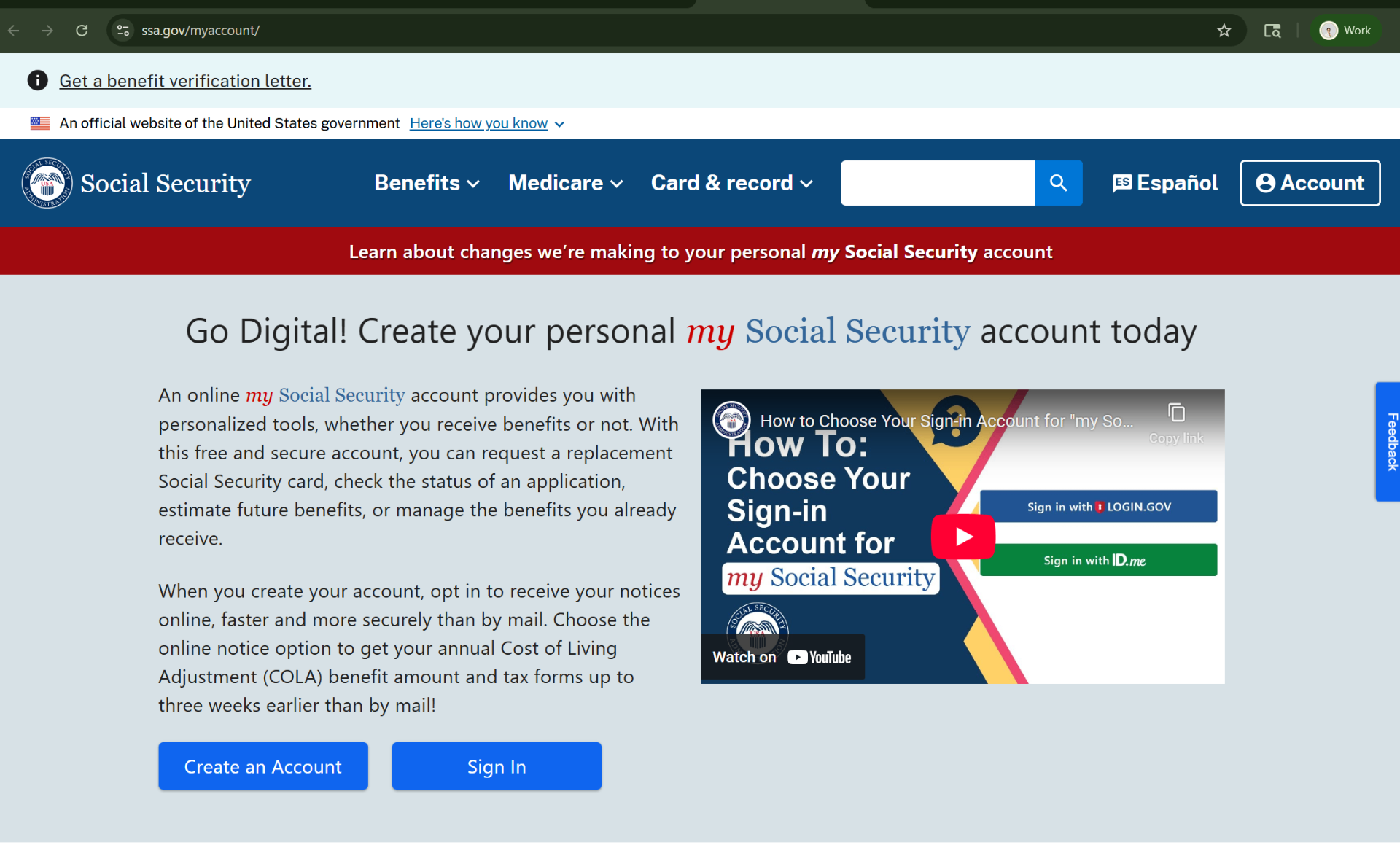
Sign in with Login.gov or ID.me
You'll need to sign in using Login.gov or ID.me. If you don't have an account, you can create one — it takes about 10 minutes and requires identity verification.
Most people use ID.me. You may need to verify your identity with a photo ID the first time.
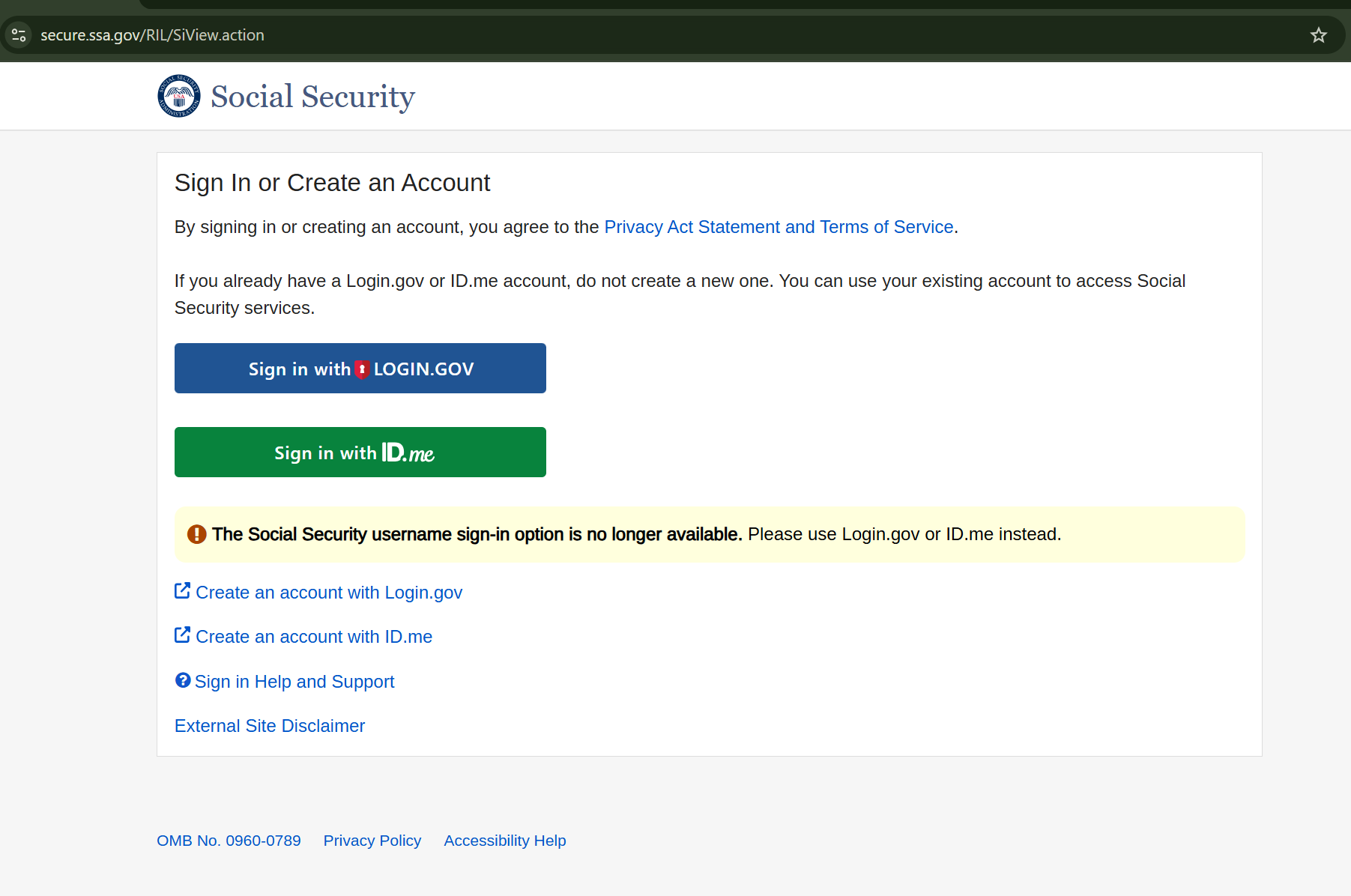
Click OK to continue to ID.me
If you chose ID.me, you'll see a message about leaving SSA's website. Click 'OK' to continue to the ID.me sign-in page.
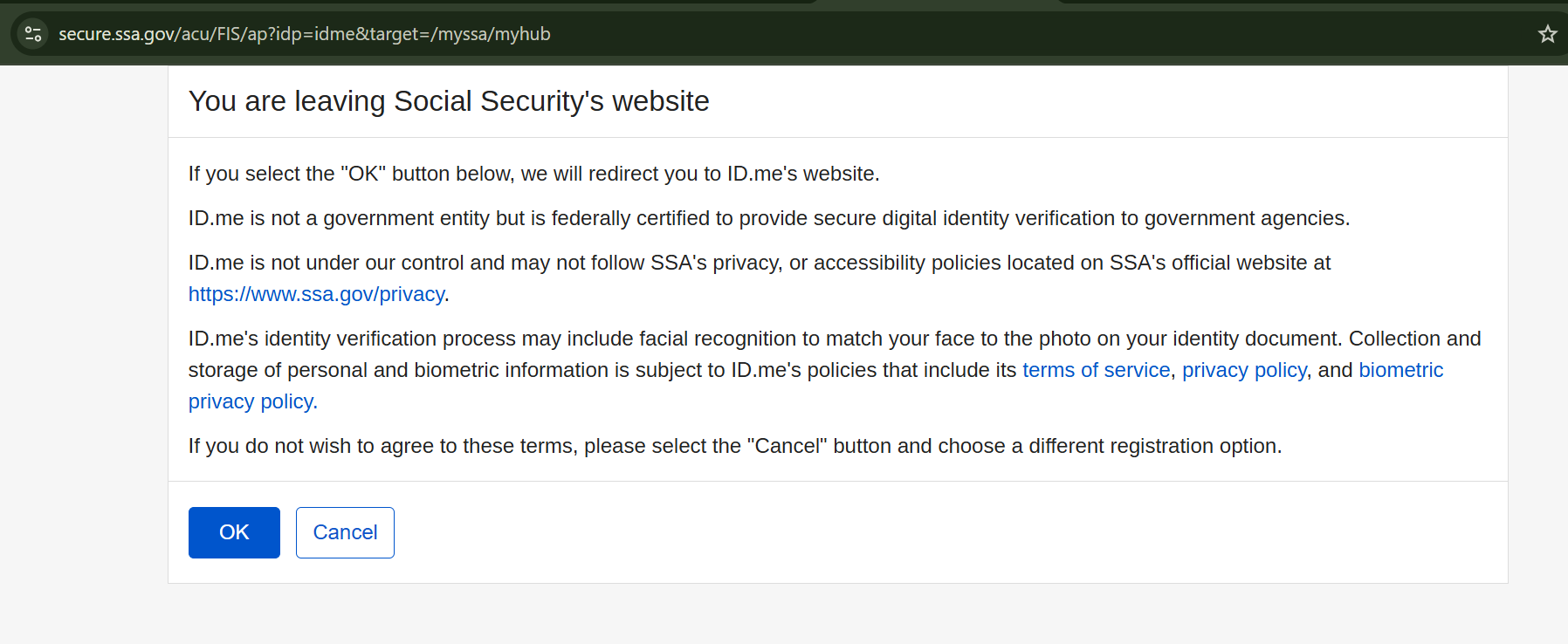
Enter your ID.me email
On the ID.me page, enter the email address you used when creating your ID.me account, then click Continue.
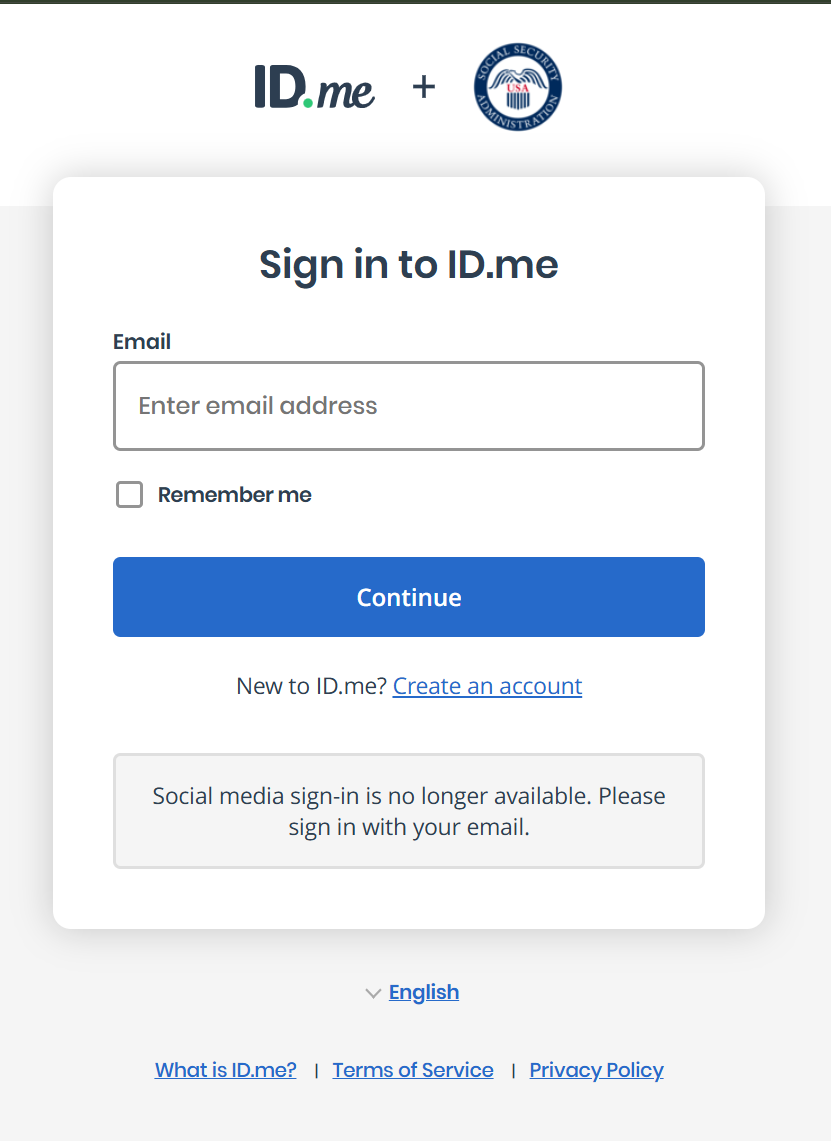
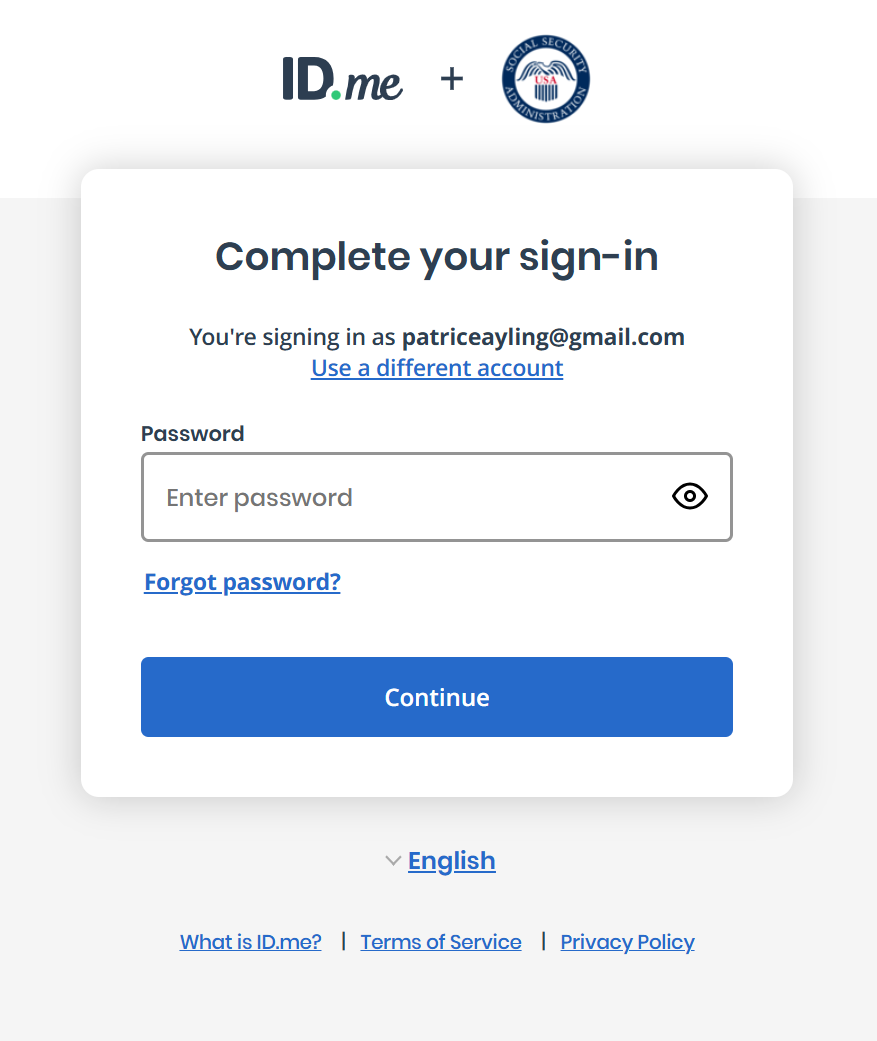
Enter your password
Enter your ID.me password and click Continue.
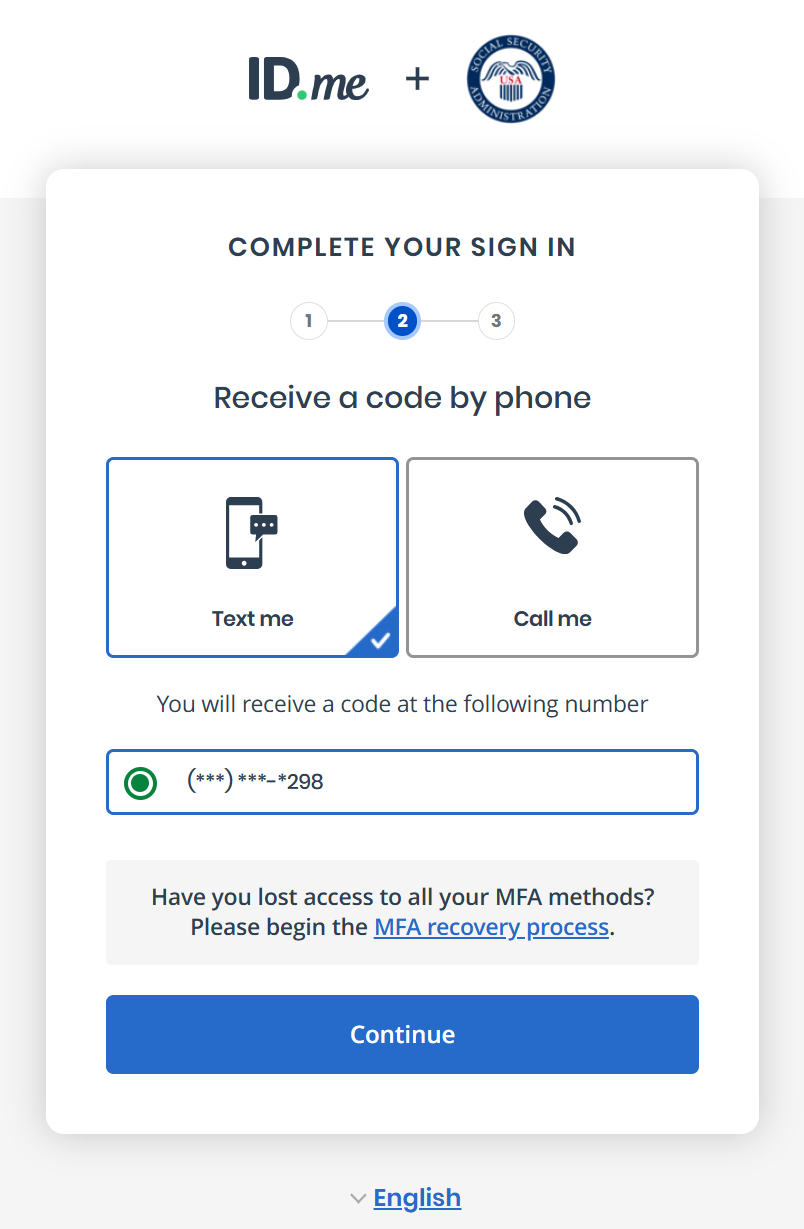
Choose how to receive your verification code
ID.me will send a code to verify it's you. Choose to receive it by text message or phone call, then click Continue.
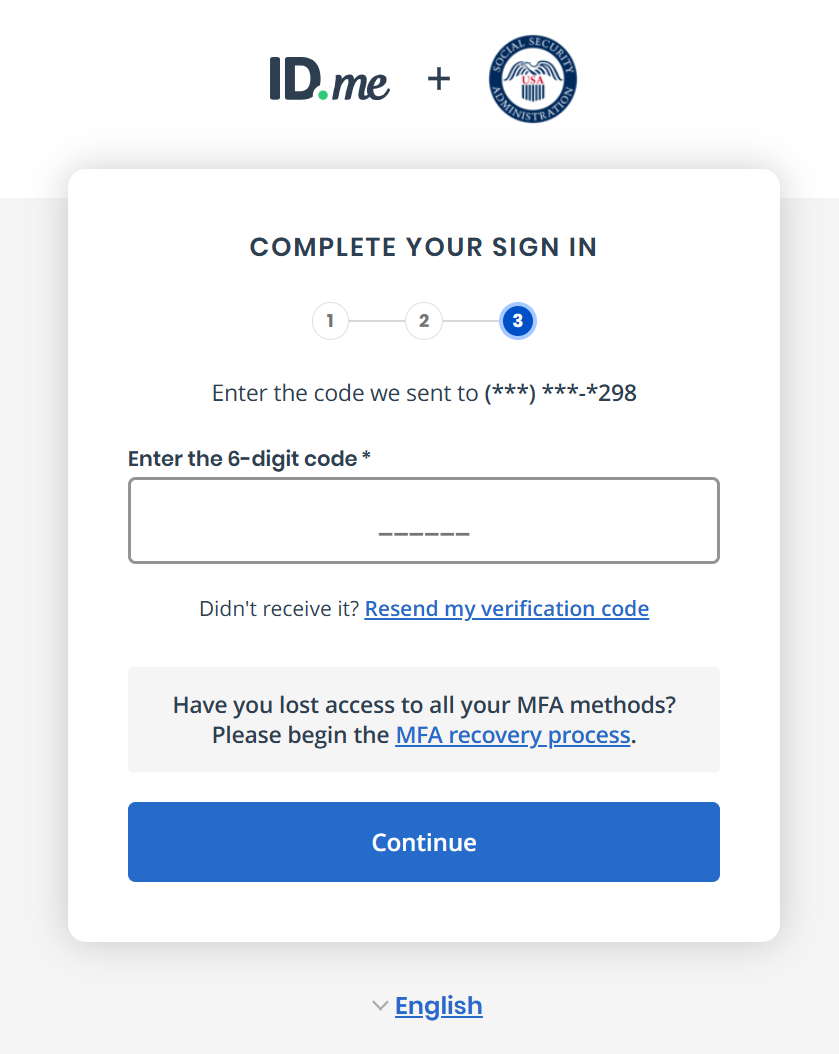
Enter the 6-digit code
Check your phone for the verification code and enter it on this screen. Click Continue when done.
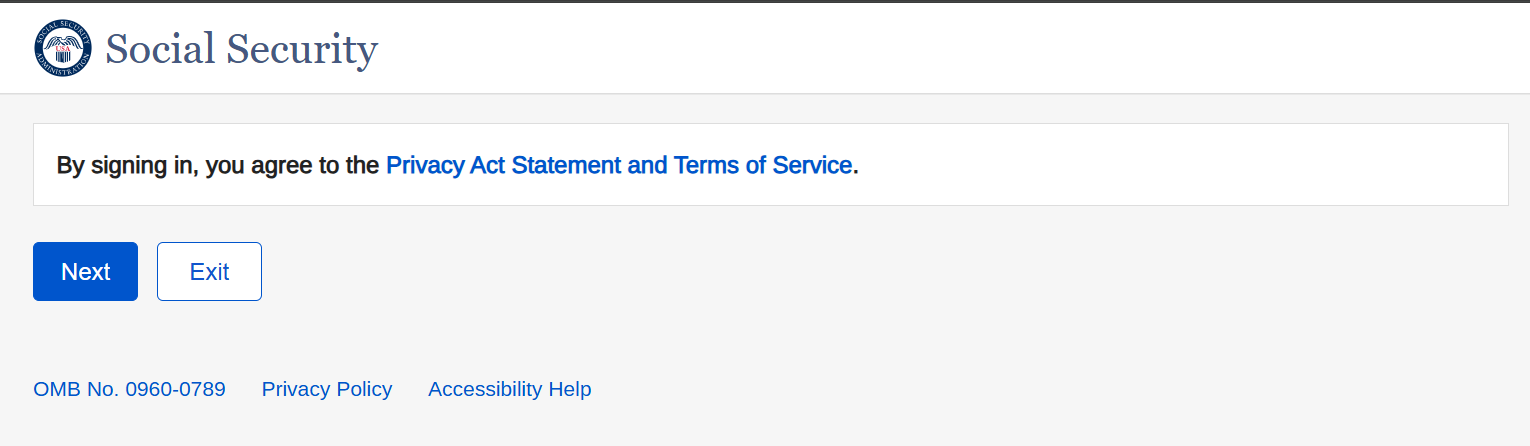
Agree to the Privacy Act Statement
Click 'Next' to agree to Social Security's terms and access your account.
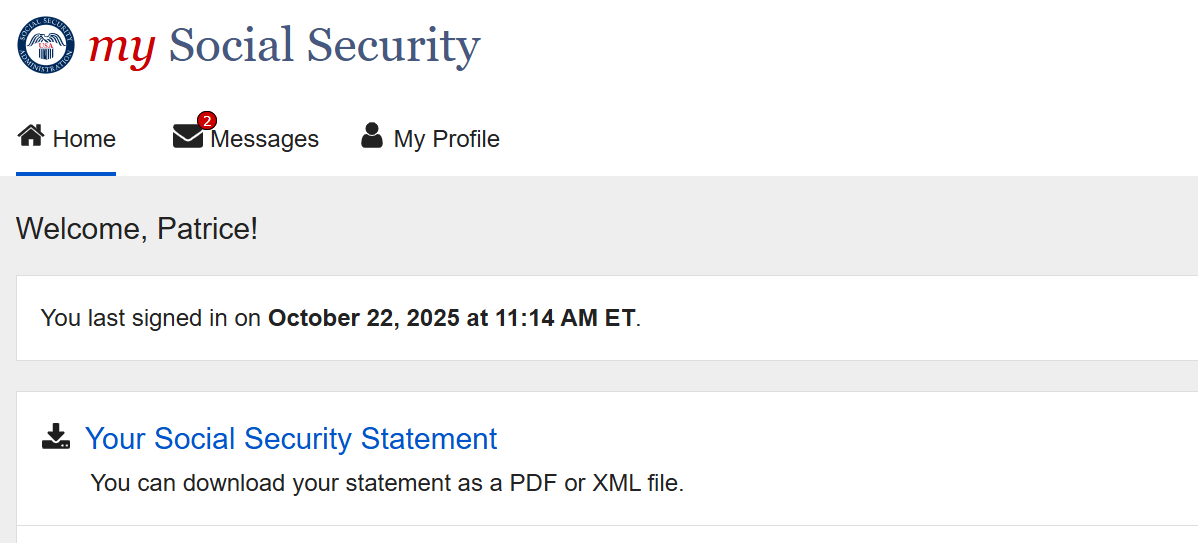
Click 'Your Social Security Statement'
On your my Social Security homepage, look for the section that says 'Your Social Security Statement' with a download icon. Click it.
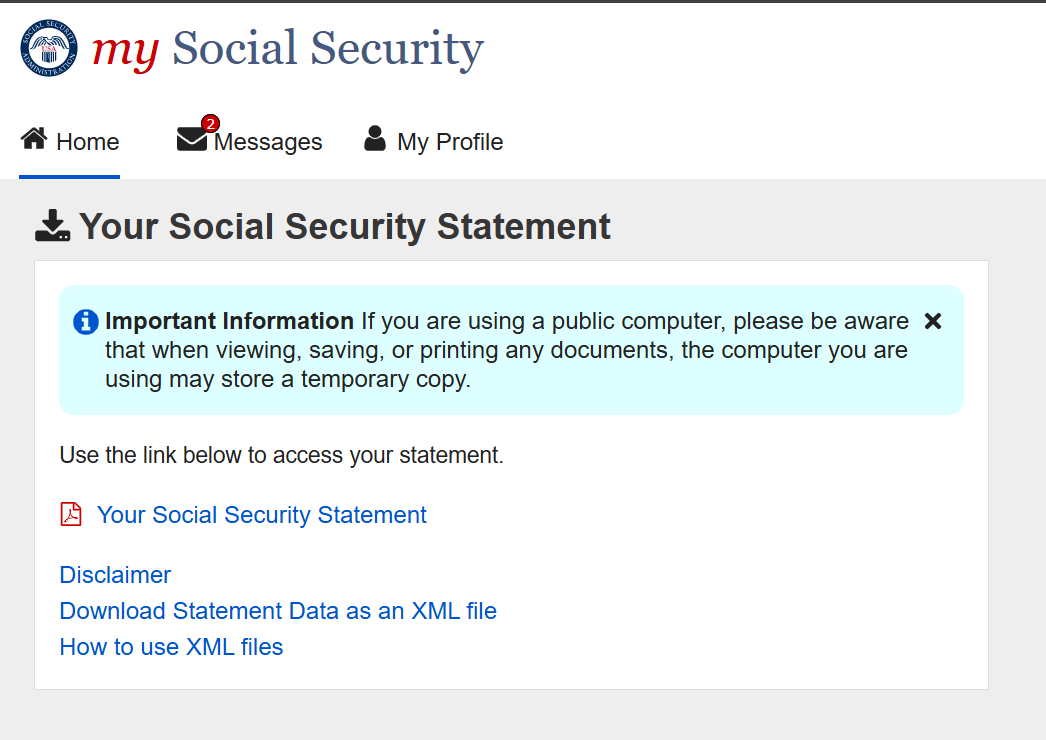
Click 'Download Statement Data as an XML file'
You'll see options to view your statement as a PDF or download the data. Click the link that says 'Download Statement Data as an XML file' — that's the one we need!
Don't download the PDF — we need the XML file for accurate calculations.
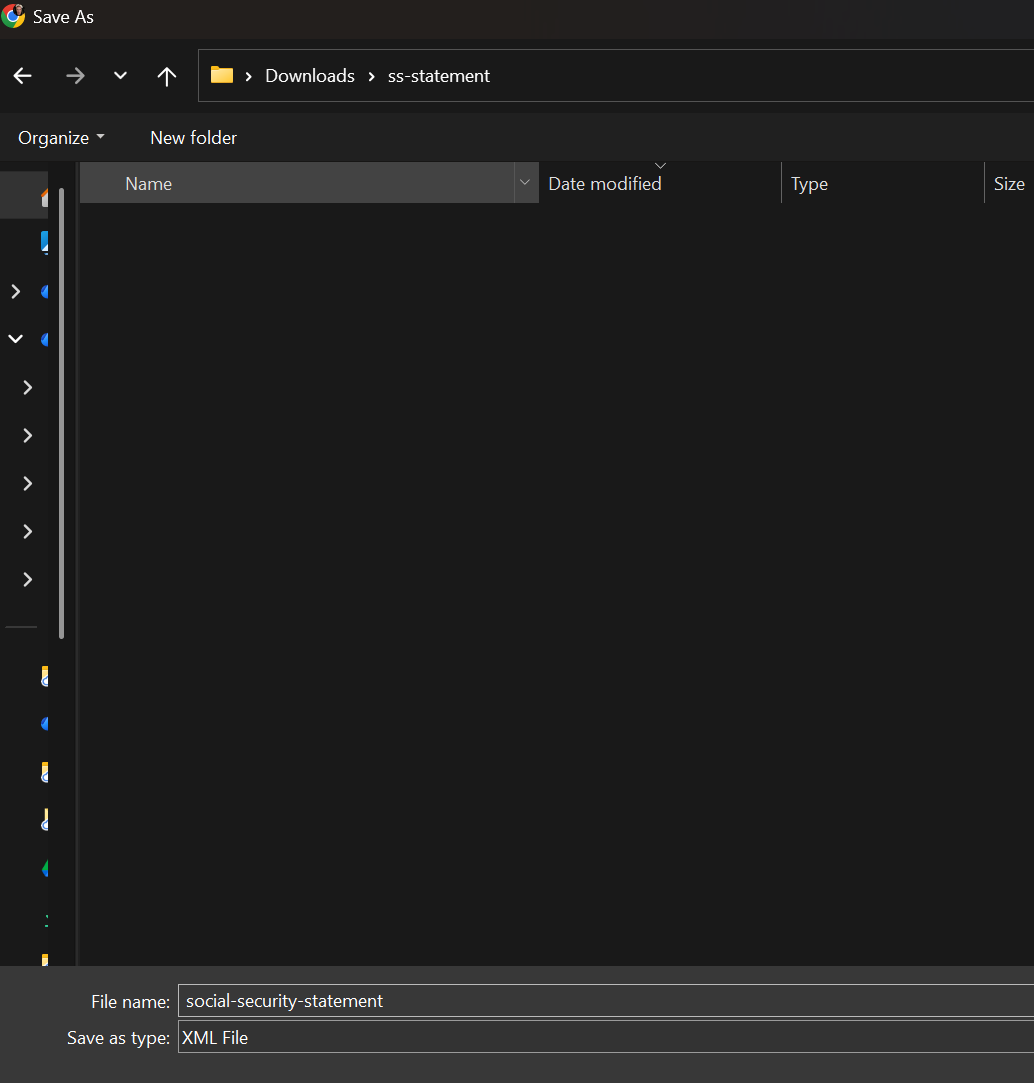
Save the file to your computer
A 'Save As' window will appear. Save it somewhere easy to find, like your Downloads folder. The file will be named something like 'social-security-statement.xml'.
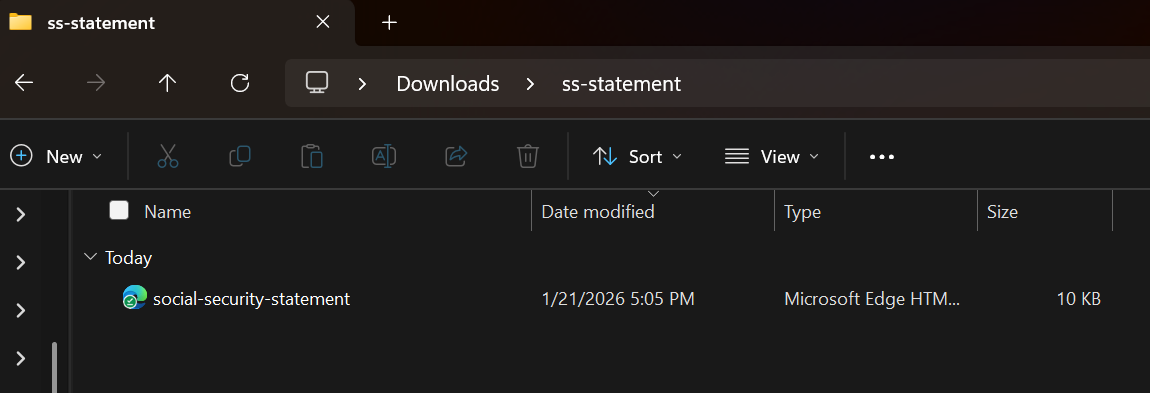
Come back here and upload the file
Your file is now saved in your Downloads folder. Return to this page and drag the XML file into the upload box below, or click to browse for it.
Ready to find your optimal claiming strategy?
Upload your statement and get a personalized analysis in minutes.
Get StartedOnce you have the file
- Why Your Social Security Analysis Needs an XML File — Not a PDFThe technical detail that separates an accurate analysis from an expensive, irreversible mistake.
- Your SSN Is Safer Than You ThinkWhat a Social Security analysis needs from you, what it never needs, and why the XML file contains no SSN.
- Business Owner Optimizer: Repair the Zero Years in Your 35-Year AverageSSA averages your highest 35 years of earnings. See what raising a low W-2 salary does to the benefit, with lead time.
- Set Up the MySSAgent Browser ExtensionOne click pulls your earnings record from your my Social Security account. No SSN entered, nothing typed by hand.